
Image creation & editing
Seedream 5 Pro
- Start with
- A text prompt or reference images
- Output resolutions
- 1K / 2K / 4K
Start an adult image from a prompt or refine artwork you already have. Explore the available NSFW image workflows, adjust the visual direction and animate the result with a supported video model.
Generate from a prompt
Choose an available image model
Refine a reference
Describe the edit and inspect the result
Continue into video
Bring a selected picture into motion
City Days
Beauty Shot
Window Breeze
City Girl
Beach Walk
Turn Around
A new picture, a reference edit and an animated result need different inputs. Start with the task you want to finish, then choose the model and settings that support it.
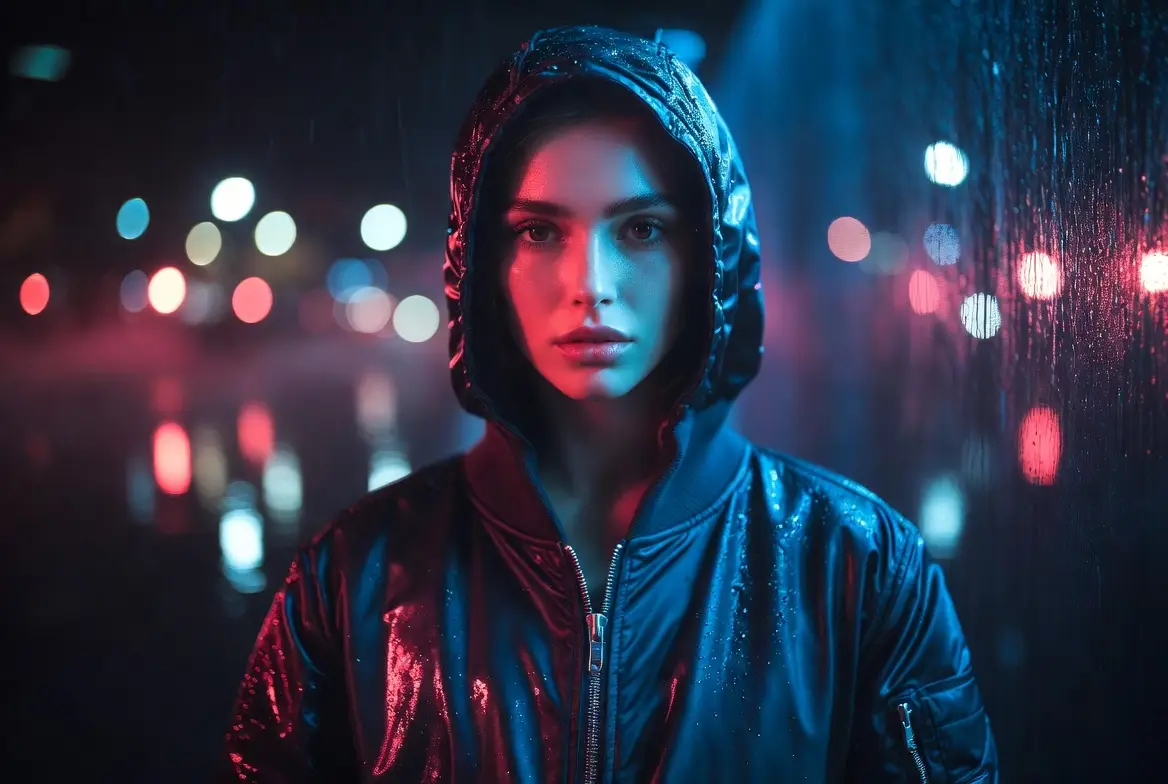
Describe the character, composition and visual style in a prompt. Select an available image model and check its current output settings.
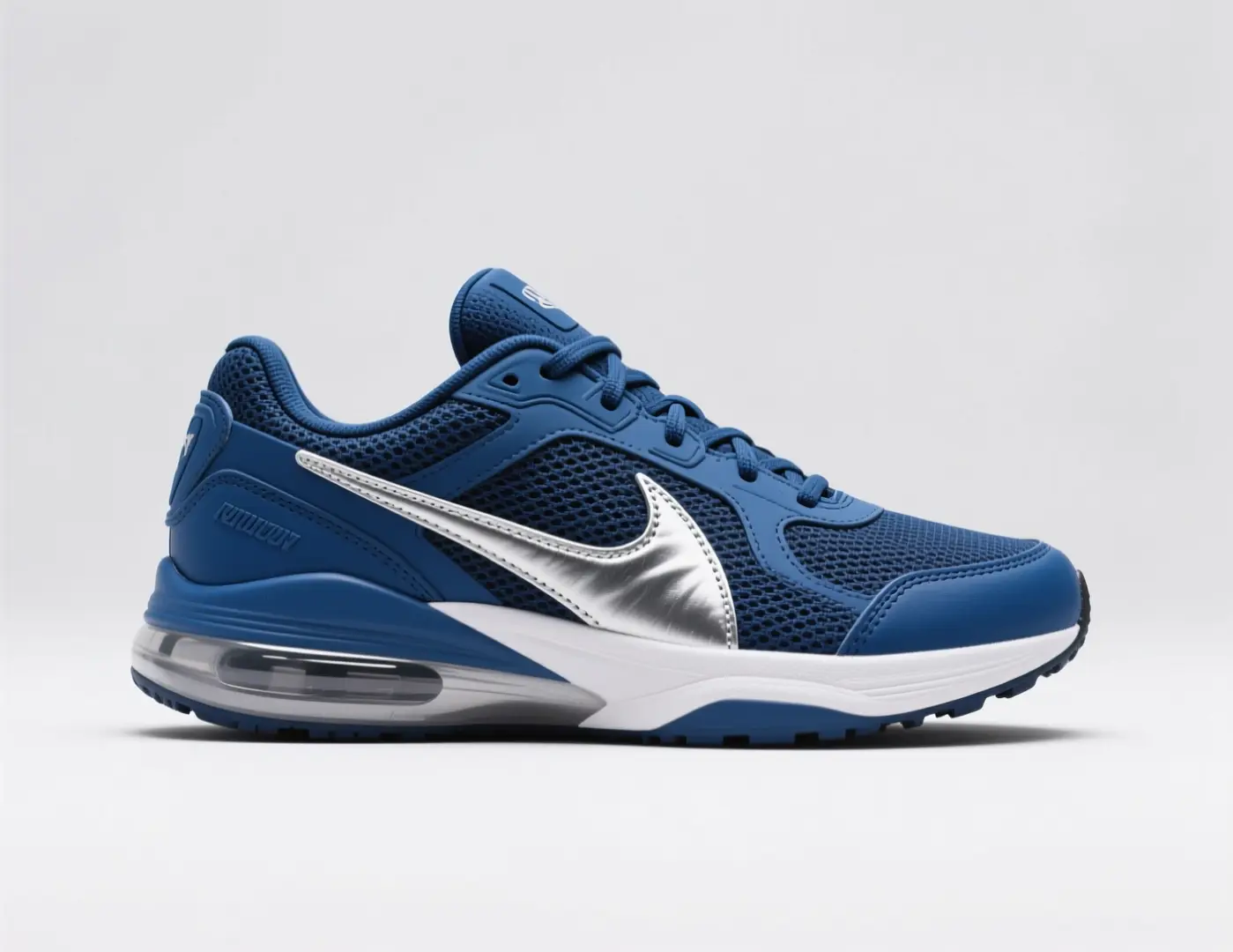
Add a reference accepted by the model and specify what should change. State the visual features you want to retain instead of relying on a vague instruction.
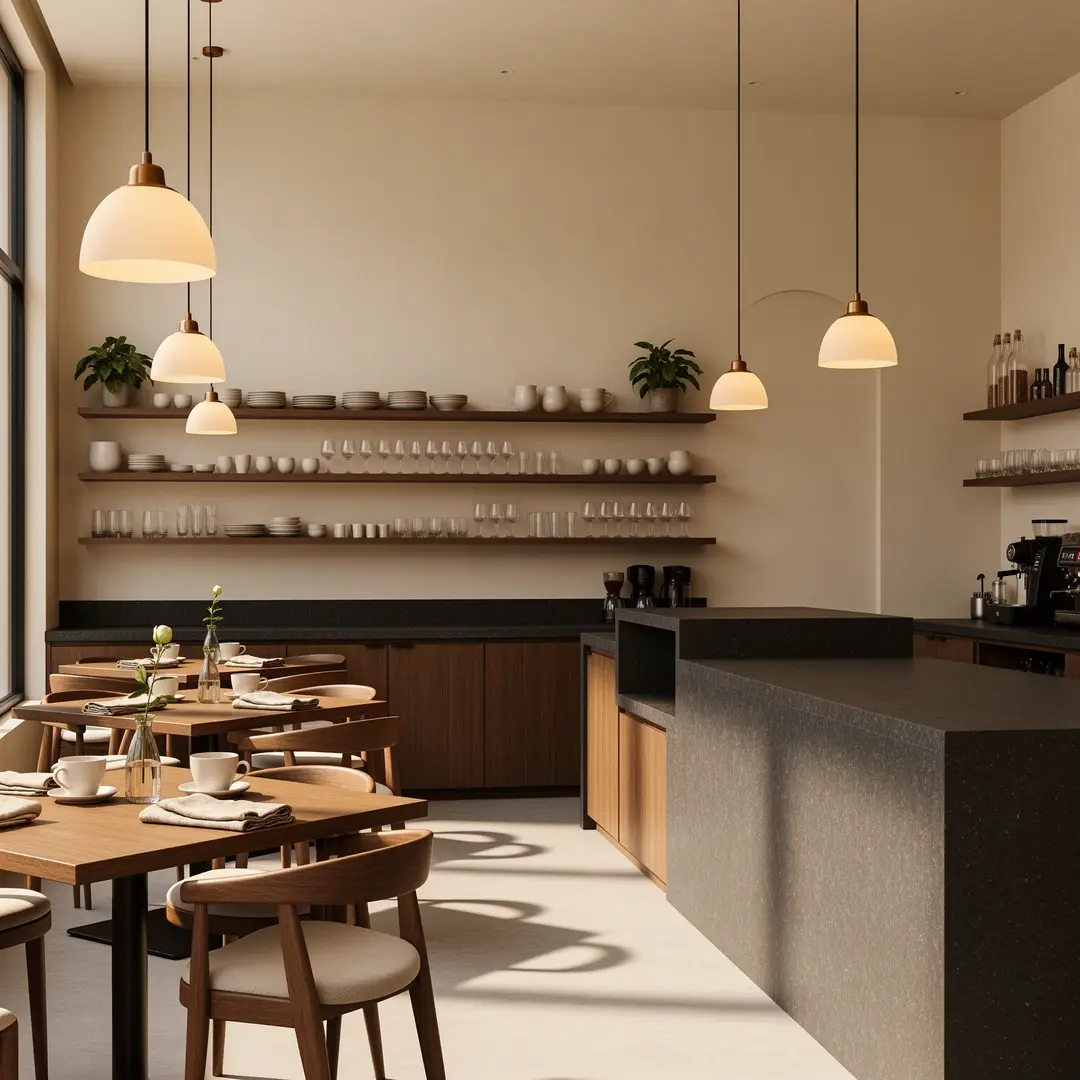
Inspect the edited details, face, framing and background in the first output. A targeted second attempt is easier to judge than several unrelated changes at once.
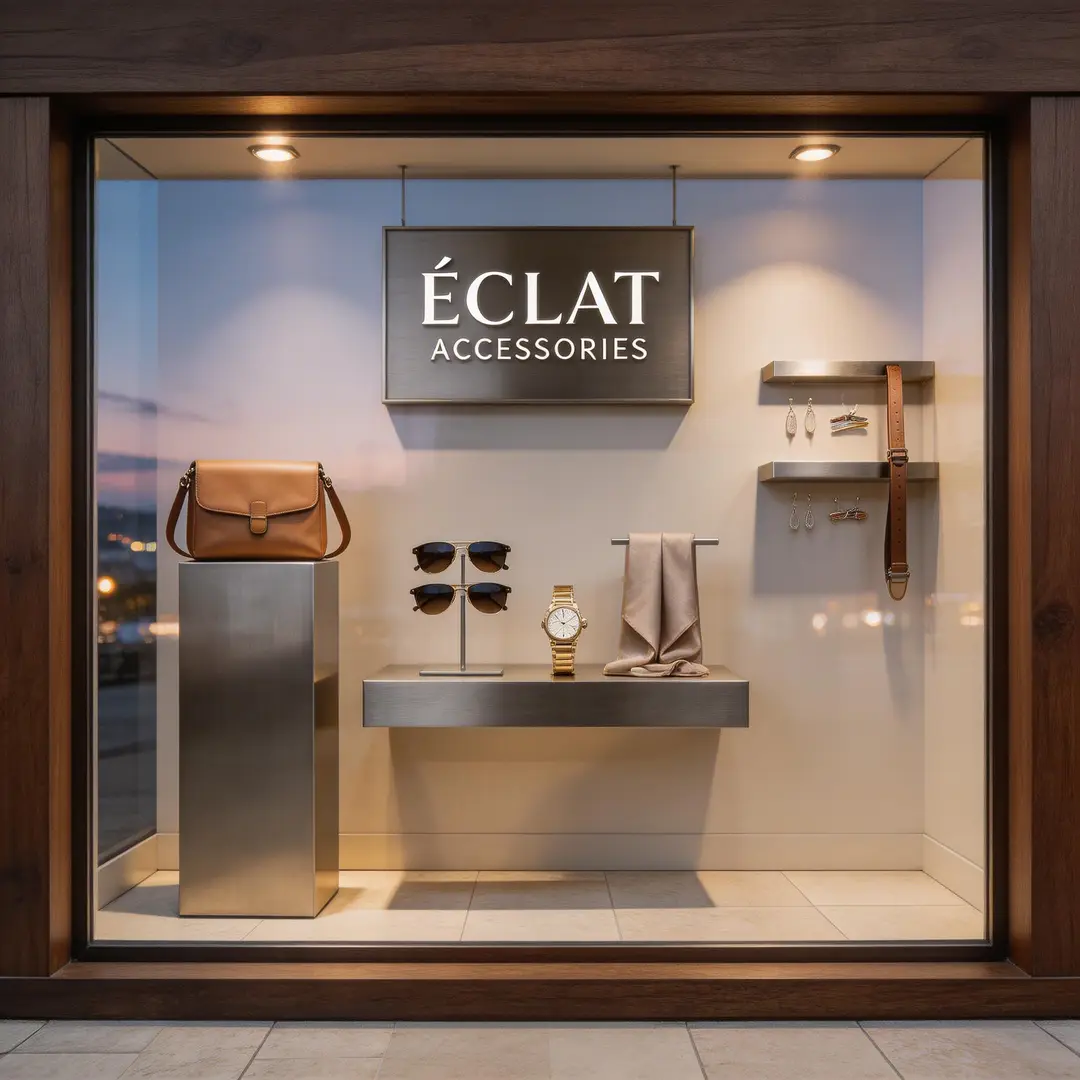
Save the picture that matches your direction. If you want a clip, use that image in a supported video workflow and describe the motion separately.
Create
Set up an image or video and see the result without leaving this page.
Generate 1 images · 14 credits total
Result Workspace
Nano Banana 2 example results
Browse curated image examples, then send any prompt back to the generator.
Web-grounded visual
Grounded city guide poster
Choose a video or image workflow, then compare the available models.
Create any video scene instantly, with unlimited freedom
Generate avatars, portraits, anime, or artistic images in unlimited styles
Turn photos into romantic cinematic kiss moments
Upload photos to auto-generate dance, hug, or kiss video scenes
Start with the input you have. Nake AI shows the live image and video models, supported reference inputs and output settings so you can choose a workflow for your project.
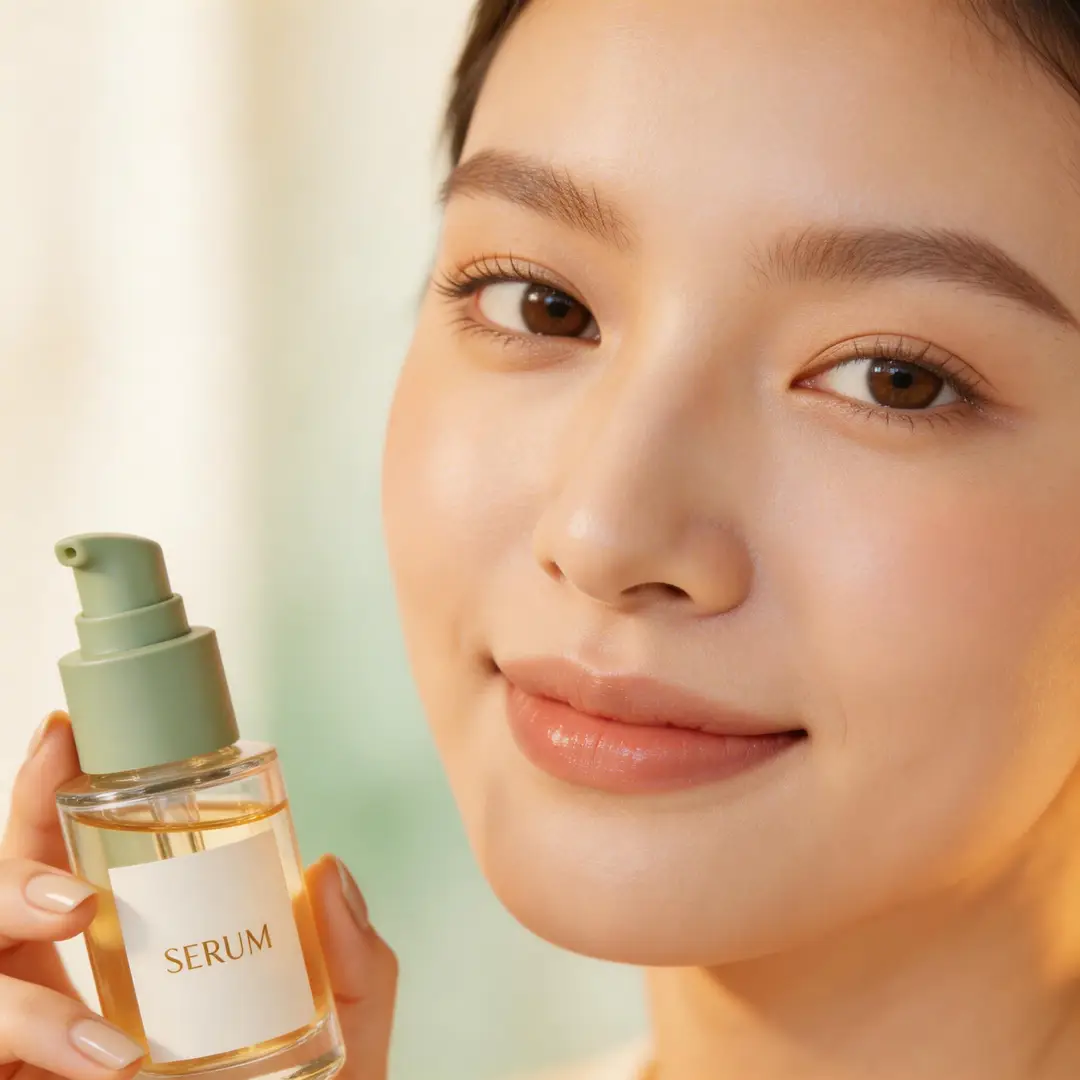
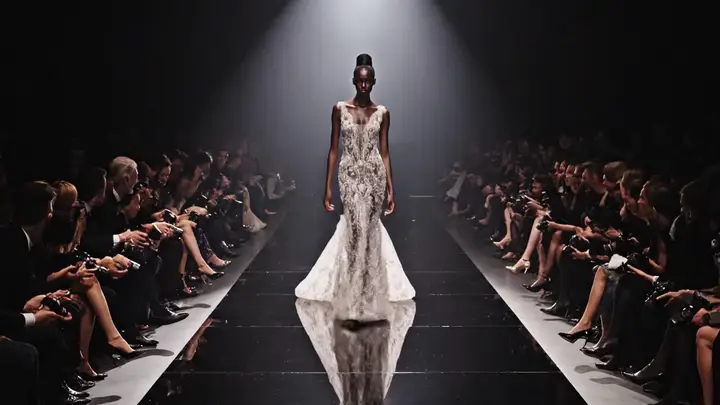
Image creation & editing
Image creation & editing
Video creation
Video creation
Membership required
Compare a preview with its recorded model, prompt and settings. Use a relevant setup to explore your own artwork, then review the actual result rather than expecting an exact copy.
Browse motion, social clips, visual styles and character collections. Open a template to see what it is designed to create.
Review the model and recorded parameters alongside the preview. Carry the recipe into the editor instead of writing every detail from scratch.
Edit the prompt or add your own reference where the workflow supports it. Review the selected model, quality and credit estimate before creating.
Inspect the first output against your idea before spending credits on more variations. Keep a useful direction, then change the prompt or reference for your next attempt.
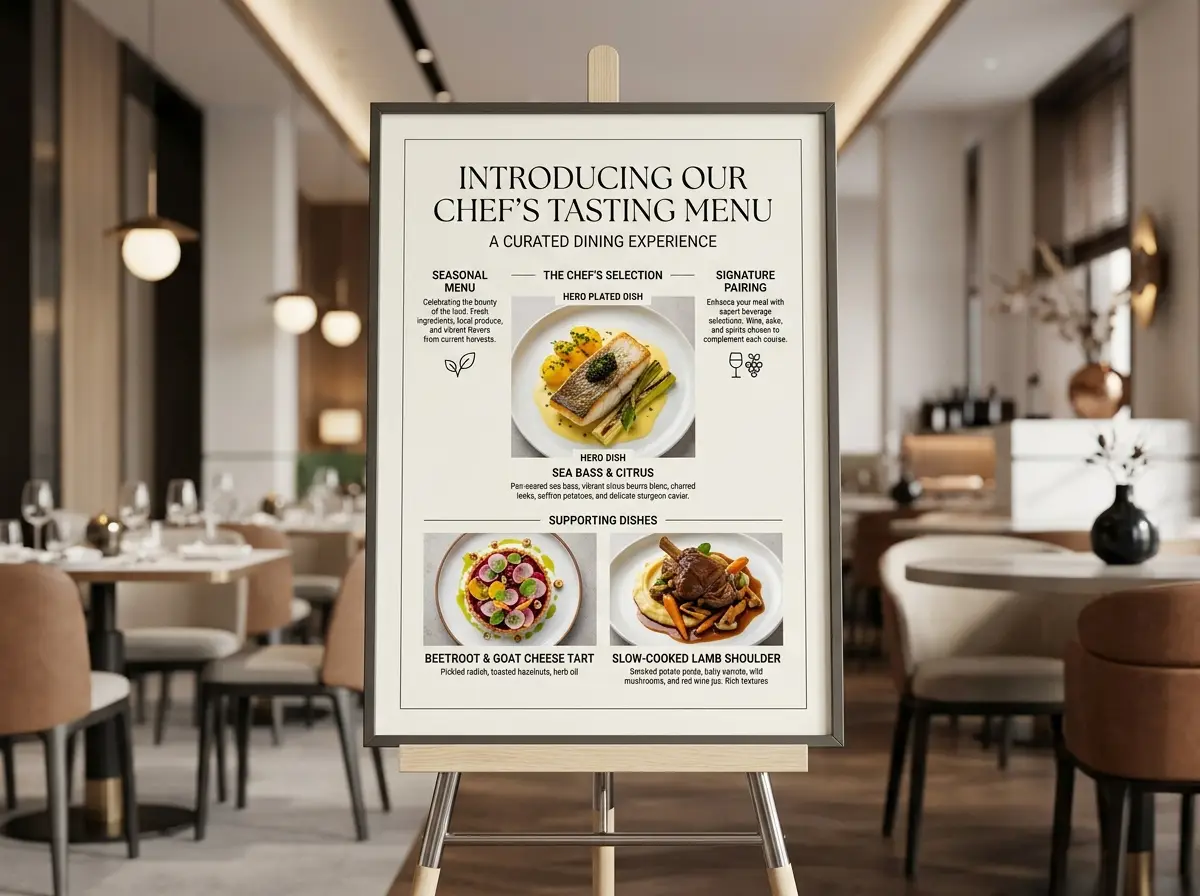
A prompt you can inspect
Restaurant explainer board
Nano Banana 2 · 4:3 · 2K
Create a modern restaurant explainer board for a chef’s exclusive tasting menu launch. Highlight one hero plated dish, two concise supporting dish close-ups, and short section labels for “Seasonal Menu”, “Chef’s Selection”, and “Signature Pairing”. Embrace a current upscale dining tone, with a refined editorial layout, understated typography, and authentic, realistic hospitality styling.
This is a recorded example setup. The available model, input and settings determine your new result.
Finish the important visual changes in the still first. Then add that picture to a supported image-to-video workflow and give the movement a clear direction.
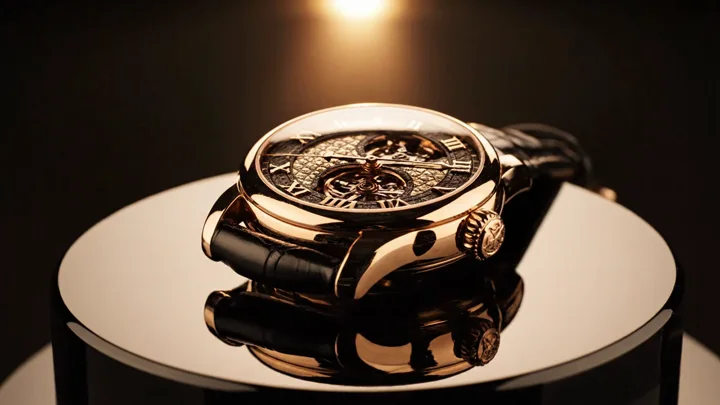
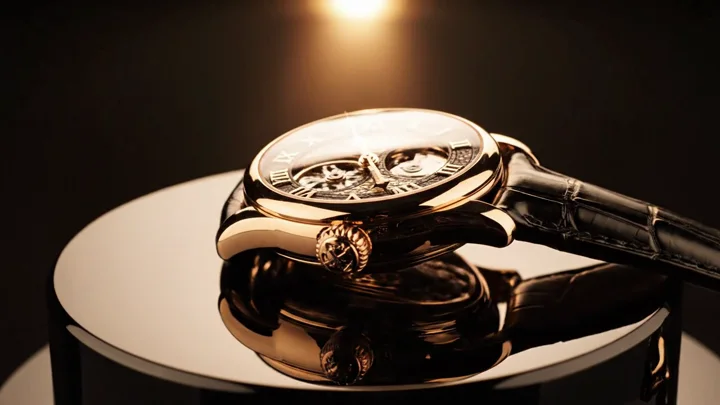
Write the subject, composition and lighting, or edit a reference image. Choose an aspect ratio that suits where the final piece will be used.
Download the image you want to use, open image-to-video, and add it as a reference. Check that the selected video model supports your input.
Use your image as a video reference. Describe the subject action and camera movement, then choose the duration and resolution supported by the model.
Inspect the output in your result workspace. Adjust the prompt, try another available model, or continue with the image and video editing tools.
Choose a concrete result to work toward. These workflows help adult creators generating images or refining a reference before turning it into a video.
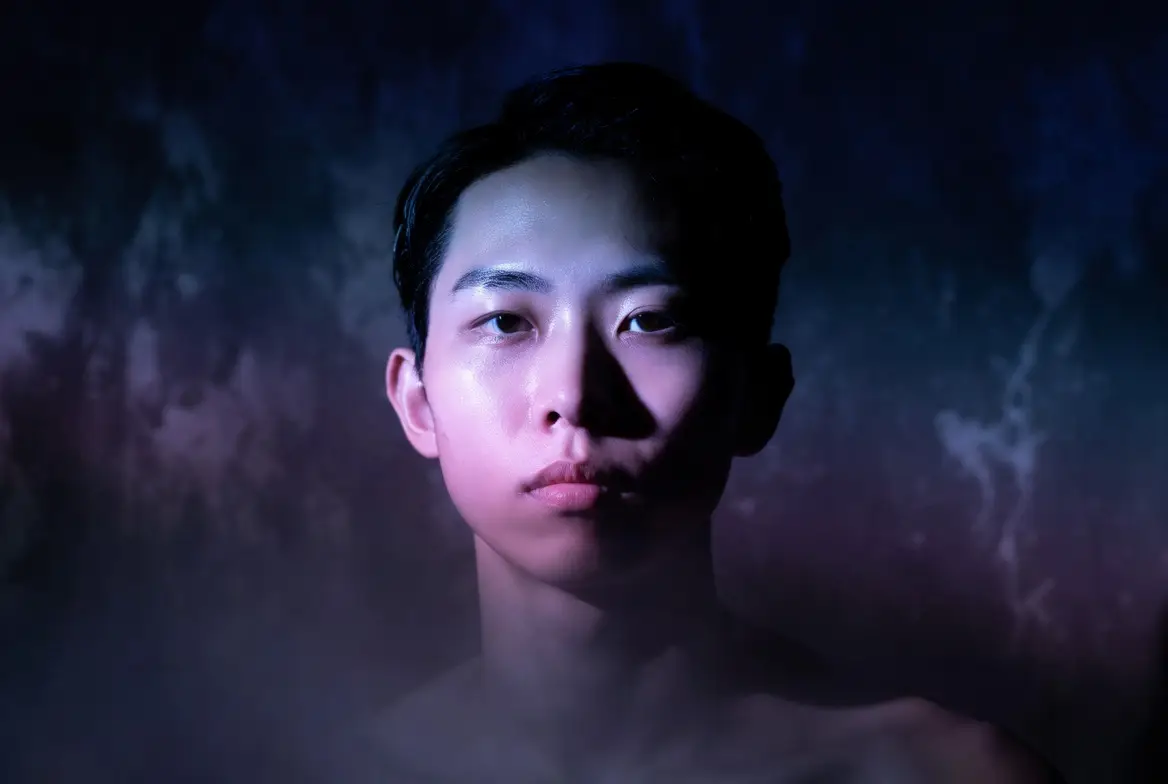
Start with a prompt that specifies the composition and style. Compare the available image workflows and review the first result before creating a series.
Generate Artwork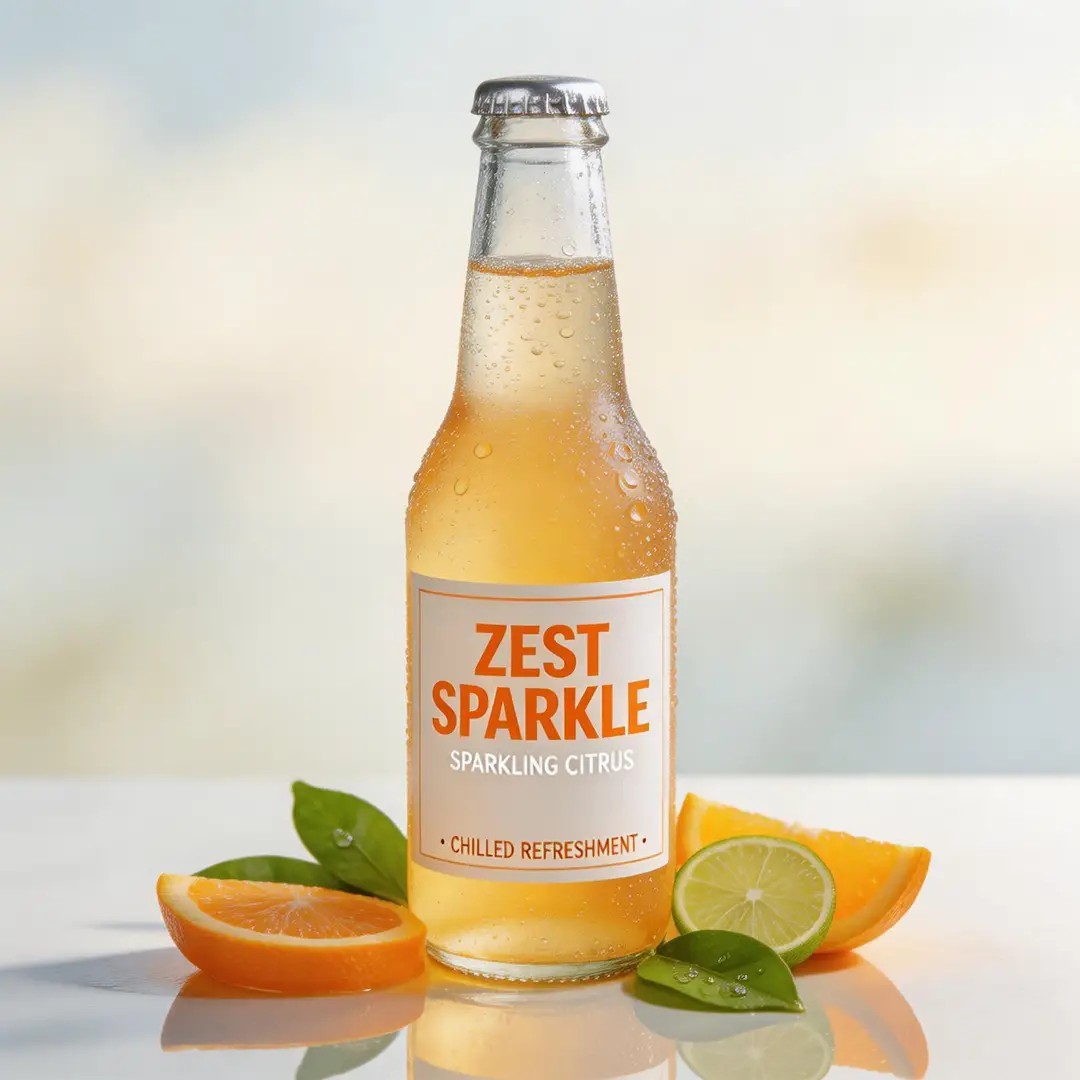
Use a supported image input to change a visual detail, setting or treatment. Check the changed areas and the features you intended to retain.
Edit a Reference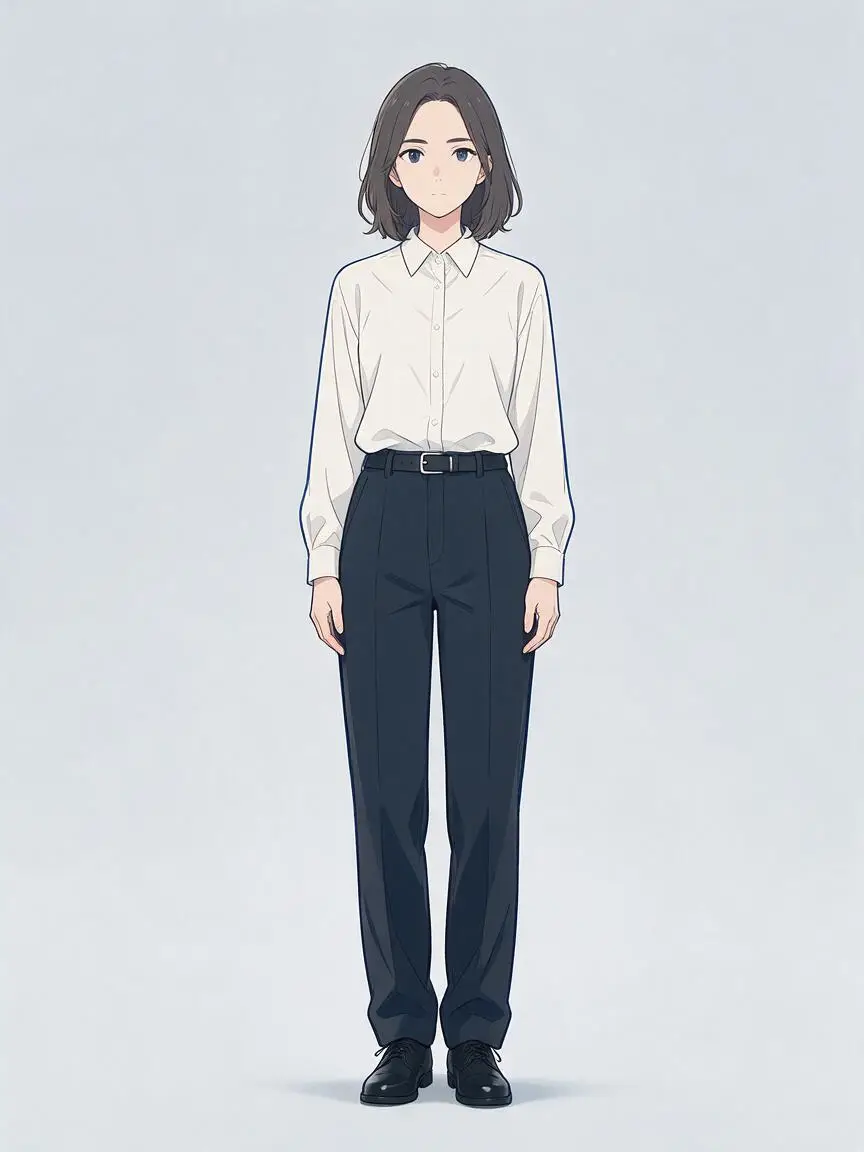
Develop a character look with a style prompt or supported reference. Keep the result you like as a starting point for a later variation.
Create Character Art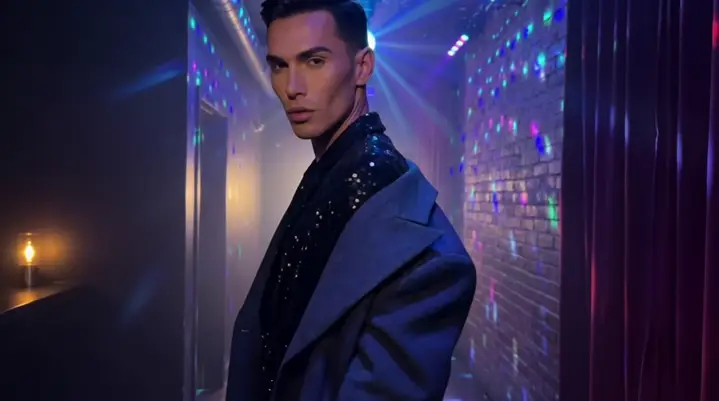
Use a selected still as the starting frame and describe the subject or camera movement. Review the output before spending credits on another clip.
Animate My ImageRefine adult artwork from a supported reference image. Specify the areas to change and the visual features to retain, then inspect the edited composition before making another variation.
From car rides to balconies, or even elevators. Nake AI brings your romantic kiss moments to life.
Create My KissFrom car rides to balconies, or even elevators. Nake AI brings your romantic kiss moments to life.
Create My KissFrom streetwear to gala gowns, or even historical armor. Nake AI brings your ultimate fashion fantasies to life.
Style My PhotoFrom streetwear to gala gowns, or even historical armor. Nake AI brings your ultimate fashion fantasies to life.
Style My PhotoExpand your clips with AI Video Extender — seamlessly adding frames and extending video length while preserving flawless original quality.
Keep It GoingExpand your clips with AI Video Extender — seamlessly adding frames and extending video length while preserving flawless original quality.
Keep It GoingRefine adult artwork from a supported reference image. Specify the areas to change and the visual features to retain, then inspect the edited composition before making another variation.
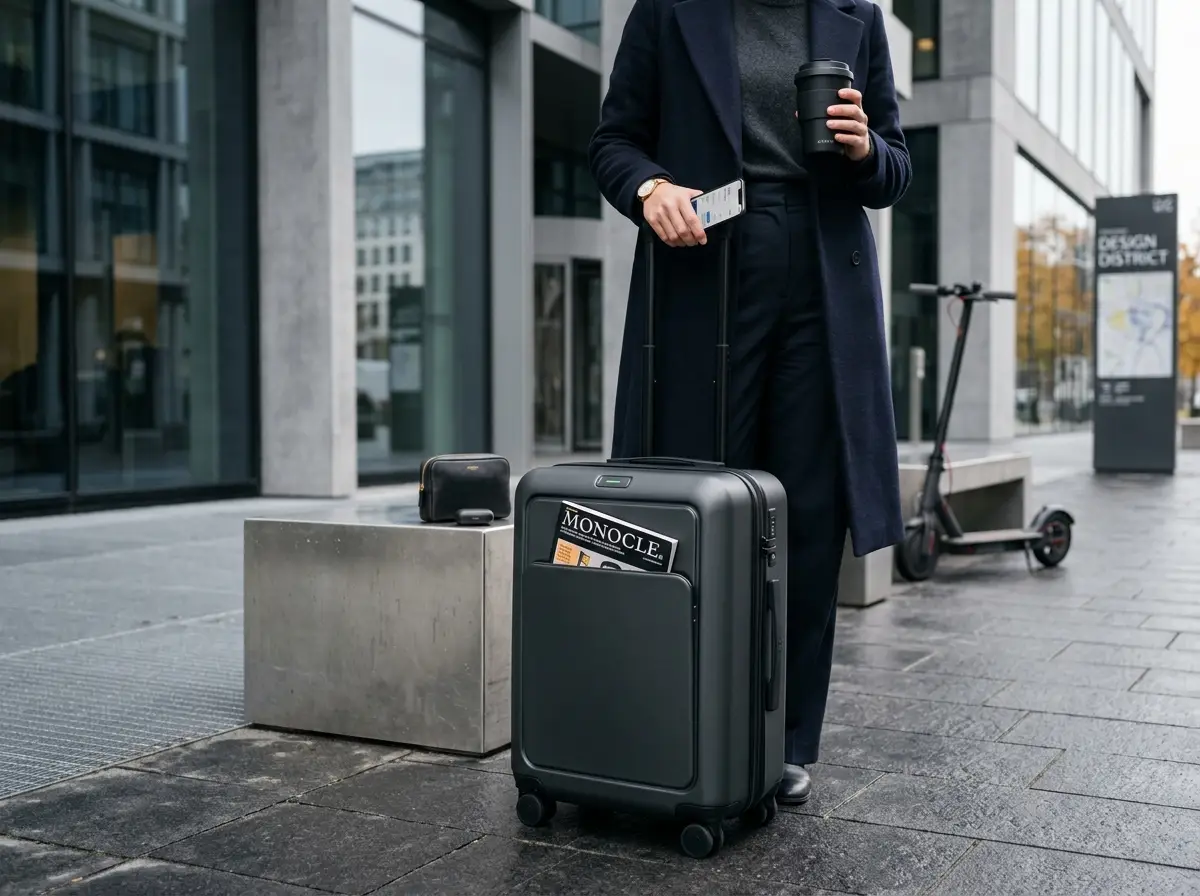
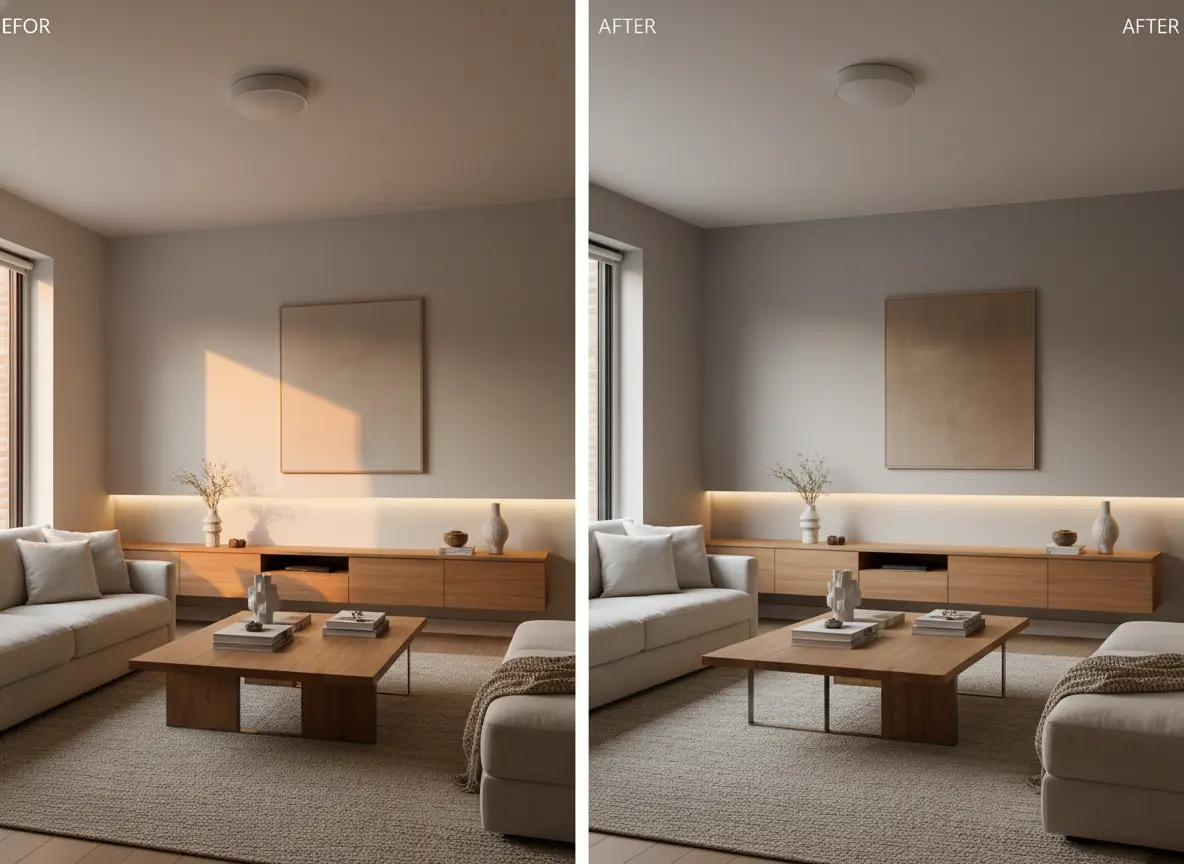
Compare the published plans and credit packs for your image and video workload. The live model selector shows the cost for each generation before you submit it.
Eligible new accounts receive starter credits. Sign in to generate and keep your creation history attached to the same account.
Membership unlocks member template previews and recipes. Creating a new image or video still uses credits, including when you start from a template.
The estimate depends on the model, resolution, duration and number of outputs. Check the total beside Create, then compare plans or credit top-ups as needed.
Compare monthly membership and credit top-ups with the volume you expect to create. Check template access and model eligibility as well as the credit balance.
Monthly memberships from $19.00
View plansUse text-to-image when you want a new picture from a prompt. Use image editing when you have a reference to change. Use image-to-video when you have a picture you want to animate. The workspace shows each model's supported inputs.
State the specific change and the visual details you want to retain, such as framing, lighting or the character's appearance. Generate one result and inspect the affected areas before making more variations.
Yes, when the selected video model accepts image input. Save the image you want to use, add it in image-to-video and describe the movement. Check the supported duration, resolution and credit estimate.
The model, output resolution, duration and number of results affect the estimate. Image edits and videos can have different costs. Review the estimate beside Create rather than assuming every tool uses the same amount.
No. Model and provider capabilities vary, and the available workflows follow the platform's current content rules. Choose from the options actually shown in the tool; a model name is not a guarantee that every request is supported.
Sign in and use the account's creation history and result tools. Keep the useful image or clip before starting another iteration, and use the same account when switching between devices.
Nake AI is an independently operated adult image and video studio built on the VideoAny platform. It provides the live creation tools shown here, rather than access to another service's products or memberships.
Contact [email protected] and include nake.si, the relevant creation or order reference and a short explanation. ACKERMAN TECH SOLUTIONS LLC operates the service; consult the current support and refund pages for the applicable terms.
18+ uncensored tools: 18+ Image Generator · 3D AI Girl Generator
Start your next creation in Nake AI
Start an adult image from a prompt or refine artwork you already have. Explore the available NSFW image workflows, adjust the visual direction and animate the result with a supported video model.