Existing adult photographic reference
 Nake
VideoAny AI
An NSFW AI art editor turns a single reference photograph into a controlled adult still. The VideoAny image-to-image workbench accepts one uploaded image and a text prompt, then uses Seedream 5 Pro to rewrite the composition while preserving the pose and subject you choose to keep. Every generation shows its credit cost before you commit, so you can plan a batch of variations without surprise.
The workbench pairs a capable image model with input controls that keep your adult reference on track. Select the right configuration, match the frame to your uploaded portrait, and review the result before you spend more credits.
01
Seedream 5 Pro is the image model configured in VideoAny for this task, and it reads both your uploaded reference and your text prompt together. When you open the NSFW AI art editor, the model selection defaults to this configuration because it is built to handle adult stills with consistent anatomy and lighting. The NSFW AI art editor relies on that pairing to produce a result that stays close to the source while applying the changes you describe. Before you generate, confirm that Seedream 5 Pro is selected so the workbench uses the intended model for your adult subject.
02
The image-to-image workbench reads the dimensions of your reference file, so set the aspect ratio to match the uploaded portrait before you generate. If you plan to crop the output later, the NSFW AI art editor still benefits from a ratio that fits the original adult subject now. A mismatched frame can stretch the person or introduce empty borders that distract from the composition. The NSFW AI art editor works best when the canvas respects the source proportions, giving Seedream 5 Pro a clean boundary for the rewrite.
03
After the first output appears, inspect how closely the adult subject follows your keep-and-change instructions. The NSFW AI art editor shows the credit cost before you generate, so you can decide whether to adjust the prompt or upload a tighter crop instead of spending credits on a direction that drifted. The NSFW AI art editor rewards a short feedback loop: open the result, compare it to the reference, and rewrite only the clause that failed. That habit keeps a batch of variations affordable and on brief.
The workbench gives you three practical controls: a reference upload, a text prompt, and a model that reads both together. Use them to lock what must stay on the person and rewrite what may change.

01
The image-to-image workbench accepts a text prompt alongside your uploaded reference image, and the strongest results start with a source that already carries the pose and camera angle you want. When you use the NSFW AI art editor, pick an adult photographic reference where the subject stands at the right height and faces the right direction. The NSFW AI art editor can then spend its capacity on clothes, light, and finish instead of correcting a pose that was never in the file. A clear reference shortens the prompt you need to write.
Use the existing adult reference to explore lighting and framing.Upload a reference and write your first keep-and-change prompt.
The same workbench supports different creative goals. Whether you are cataloging outfits, testing room light, or applying a drawn finish, the reference keeps the adult subject consistent across every generation.
The reference gallery contains existing adult photographic images that illustrate the kind of source files the workbench accepts. Each visual shows a creative decision you can make before you upload your own still.
Illustrative references. Not verified VideoAny input/output pairs.
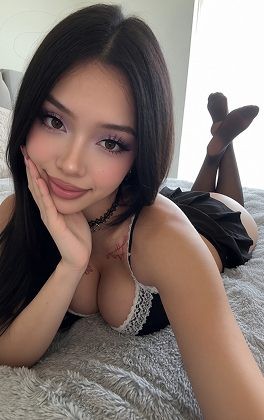
The existing adult photographic reference in the gallery demonstrates how a tight crop on the person gives the NSFW AI art editor a clean input. When the frame removes distracting background elements, Seedream 5 Pro can concentrate on the figure and the changes you request. The NSFW AI art editor reads the whole uploaded area, so a crop that keeps the adult subject prominent helps the model stay on brief. Use the gallery example as a guide for trimming your own file before you upload.
Existing visual reference for composition and lighting; not a verified output from this page.
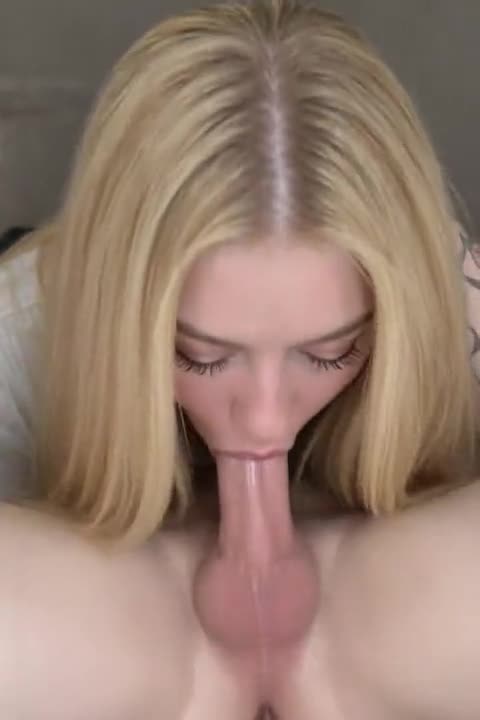
One gallery visual shows a wider adult photographic reference that keeps the full pose and the surrounding context intact. This approach works when you want the NSFW AI art editor to rewrite the clothes or the light without altering the stance or the environment. The NSFW AI art editor can handle a full-body frame as long as the prompt tells it what to preserve. Study the lookbook example to see how a complete pose gives you more options for wardrobe and setting changes.
A short, specific prompt keeps the adult reference in control. Crop the source, limit the keep list, and inspect the pair side by side before you generate again.
01
Remove everything that is not the person before you bring the file into the NSFW AI art editor. A clean crop tells Seedream 5 Pro exactly which adult figure to preserve, and it prevents the model from spending capacity on background objects you did not intend to keep. The NSFW AI art editor reads the full uploaded area, so a tight frame around the subject gives you more predictable results. Crop first, then write the prompt that changes only what matters.
02
The NSFW AI art editor already sees the reference, so you do not need to describe the adult subject again. Write a keep list of two or three elements you want to preserve, then write a change list of one or two elements you want to alter. The NSFW AI art editor performs better with a short, focused prompt than with a long paragraph that repeats what the image already shows. A brief instruction leaves less room for the model to misinterpret your intent.
03
Open the uploaded adult reference and the generated still side by side before you spend another credit. The NSFW AI art editor gives you a result that should match the keep list and apply the change list; if something drifted, identify the clause that failed and rewrite only that line. The NSFW AI art editor rewards a careful inspection habit because each adjustment teaches you how the model reads your particular reference. Compare, correct, and generate again with a tighter prompt.
Find quick answers about reference files, prompt writing, result evaluation, and credit use. Each answer draws on the workbench controls and the Seedream 5 Pro configuration.
The NSFW AI art editor accepts a single uploaded adult photographic image and a text prompt. You do not need to describe the whole picture again; write only what must stay and what may change. The NSFW AI art editor reads the reference for everything you omit, so a short prompt that names the pose, the skin tone, or the camera angle you want to keep is enough. The credit cost is shown before you generate, so you can test a minimal prompt and expand it only if the result needs more guidance.
The image-to-image workbench accepts a standard adult photographic image file. Crop the source to the subject before you upload so the model reads a clean frame. The NSFW AI art editor uses the uploaded reference to anchor the pose and the identity, so a clear, well-lit adult still gives the most predictable result.
No. The workbench reads the reference for everything you do not mention. Write a short keep list and a change list instead of a full scene description. The NSFW AI art editor preserves the unmentioned elements from the uploaded adult image, so you only need to specify what must stay fixed and what may shift.
Follow three steps to turn an adult reference into a controlled still. Upload a cropped image, write a keep-and-change prompt, and inspect the result before you generate again.
Open the NSFW AI art editor and select the image-to-image workbench. Upload a single adult photographic image that you have permission to use. Before you write anything, crop the file so the subject fills the frame and distracting background elements are removed. The NSFW AI art editor reads the full uploaded area, so a clean crop gives Seedream 5 Pro a clear signal about which adult figure to preserve. Once the crop is set, you are ready to write the prompt.
In the prompt field, write a short keep list and a short change list. For example, keep the pose and the skin tone; change the outfit to a silk robe and the light to warm sunset. Then confirm that Seedream 5 Pro is selected as the model, set the aspect ratio to match your uploaded portrait, and choose the resolution. The NSFW AI art editor shows the credit cost before you generate, so review the settings and the prompt, then generate your first adult still.
Open the generated still and place it next to the uploaded reference. Check whether the adult subject kept the elements you listed in the keep clause and whether the change clause applied correctly. If the pose drifted, rewrite the keep clause to name the pose more specifically. If the light did not change, rewrite the change clause with a clearer color temperature. The NSFW AI art editor lets you adjust one clause at a time, so each generation teaches you how the model reads your particular reference.
Before you close the workbench, freeze your brief, cap your retry budget, and set the fidelity bar you will inspect against. A prepared input makes every credit count.
Write your final keep-and-change prompt in a note outside the NSFW AI art editor so you can return to it later. A mood word like "dreamy" can drift across generations; a specific clause like "keep the shoulder angle and the skin tone, change the light to cool window glow" stays stable. The NSFW AI art editor responds to concrete language, so freeze the brief in that form before you move to another task. A frozen brief also helps you compare results across sessions.
Decide how many credits you are willing to spend on this adult reference before you generate again. The NSFW AI art editor shows the cost each time, so multiply that number by your retry limit and set a hard stop. When you reach the cap, either accept the best result so far or switch to a different reference. A budget keeps a single file from consuming credits that could go to other adult stills in your project.
Pick one detail in the adult reference that must survive every generation, such as the shape of the jaw or the direction of the gaze. Use that detail as your fidelity bar when you inspect each output from the NSFW AI art editor. If the bar is met, the generation is a keeper; if it fails, adjust the prompt and try again. The NSFW AI art editor rewards a consistent inspection habit because it turns a subjective review into a quick pass-or-fail check.

02
Write your prompt as a keep list and a change list, not as a full scene description. The NSFW AI art editor reads the reference for everything you do not mention, so you only need to specify what must remain fixed and what may shift. For an adult subject, you might keep the skin tone and the angle of the shoulders while changing the fabric, the color temperature, or the background. The NSFW AI art editor applies those instructions through Seedream 5 Pro, which is configured to handle NSFW image generation within the workbench.
Use the existing adult reference to explore lighting and framing.Upload a reference and write your first keep-and-change prompt.
03
The image-to-image workbench lets you upload an existing adult photographic image and produce a close variant, which is faster than describing a new person from scratch. When you open the NSFW AI art editor, you are not generating a random figure; you are rewriting a still you already own. The NSFW AI art editor keeps the subject recognizable while you change the wardrobe, the mood, or the finish. That makes it a practical tool for building a set of related adult frames without losing the identity of the original model.
Use the existing adult reference to explore lighting and framing.Upload a reference and write your first keep-and-change prompt.
Existing visual reference for composition and lighting; not a verified output from this page.
The gallery includes an adult reference paired with a minimal prompt that changes only one fact about the image. The NSFW AI art editor responds well to a short instruction when the reference already carries the rest of the scene. The NSFW AI art editor does not need a long description; it needs a clear keep list and one change. Use the one-fact board as a model for writing prompts that stay economical and produce a result that is easy to inspect.
Existing visual reference for composition and lighting; not a verified output from this page.
Existing visual reference for composition and lighting; not a verified output from this page.
Creator workflow notes
Working habits for a referenced adult-still rewrite, not user reviews
These notes describe common ways to run a keep-and-change pass on an authorized adult still. They are not user reviews, ratings, or promises about a specific result.
Wardrobe rewrite
Clothes workflow
Keep face, pose, and camera height. Change only the garment color or cut. If a new accessory appears, the change list was too broad.
Scene rewrite
Background workflow
Keep face, garment, and crop. Change only the wall or venue behind the person. Inspect floor contact against the upload.
Light rewrite
Lighting workflow
Keep pose and staging. Name the new light direction in one clause. Check eyes, fabric sheen, and shadows before you accept the plate.
After the NSFW AI art editor produces a still, open the reference and the output side by side. Check whether the adult subject kept the pose, the skin tone, and any other elements you listed in the keep clause. The NSFW AI art editor is not a pixel-perfect copier; it rewrites the image within the bounds of the prompt. If the result added objects that were not in the photo, the prompt may have been too open. Tighten the change list and generate again.
The NSFW AI art editor can introduce new elements when the prompt leaves room for invention. If you did not explicitly tell the model to keep the background or the props, Seedream 5 Pro may fill the space with plausible additions. Add a short keep clause that names the empty background or the existing objects, and the next generation will stay closer to the reference.
The workbench reads the whole image and the whole prompt together. You can describe a region to preserve in the keep list, but the model does not support a strict mask that locks pixels. Write a prompt that names the adult subject's face or body as the fixed element, then describe the restyle for the clothes or the background. The result will favor the keep instruction while applying the change.
The NSFW AI art editor shows the credit cost before each generation, so you always know what you are spending. There is no hidden fee for uploading a reference or for keeping the result. If you need a new idea that the reference should not constrain, switch to the text-to-image workbench instead of trying to force the NSFW AI art editor to ignore the source. The two workbenches share the same account, and you can move between them as your project demands.
The credit cost is shown before you generate, and it reflects the current model and input configuration. The image-to-image workbench may use a different credit amount than the text-to-image workbench. Check the displayed cost each time you open the NSFW AI art editor so you can plan your batch.
Switch to the text-to-image workbench. The NSFW AI art editor is designed to stay close to an uploaded adult still, so forcing it to ignore the reference can waste credits. The text-to-image workbench accepts a prompt without an image, giving you a blank canvas for a new adult subject or setting.
VideoAny AI
Upload a reference and write your first keep-and-change prompt.
Before you close the workbench, freeze your brief, cap your retry budget, and set the fidelity bar you will inspect against. A prepared input makes every credit count.